Optimal workflow in Word
Navigation to the different guides
- Guides
- Accessible publication preparation in Word
- Optimal workflow in Word
- PDF-export
- Using video in articles
- Accessible publication preparation in Word
Organize the Word interface for easier access to useful features:
- The Navigation Pane shows the heading hierarchy
- Styles pane: (CTRL + ALT + SHIFT + S) provides quick access to paragraph styles
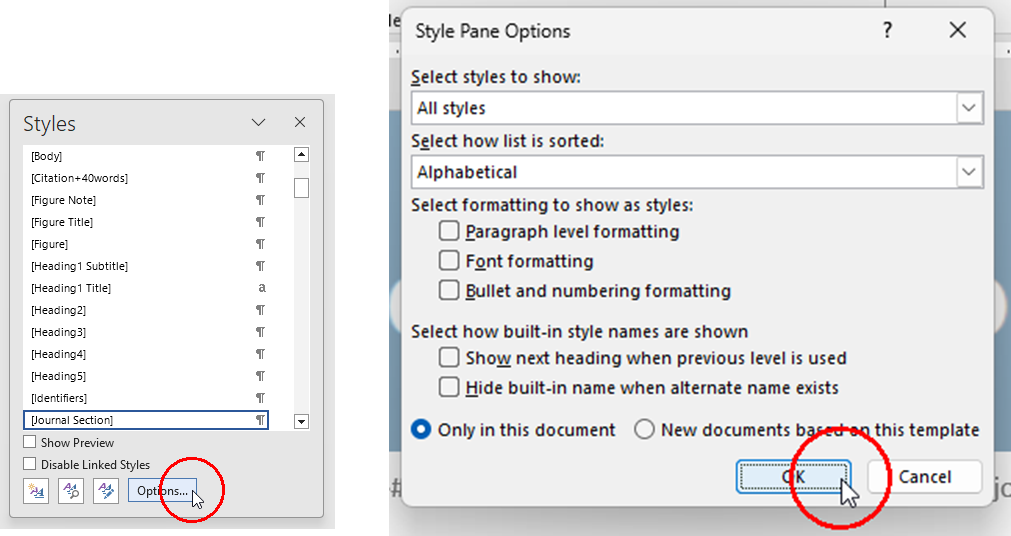
- Show all styles in the document, sorted alphabetically, to quickly find the right paragraph style in the list
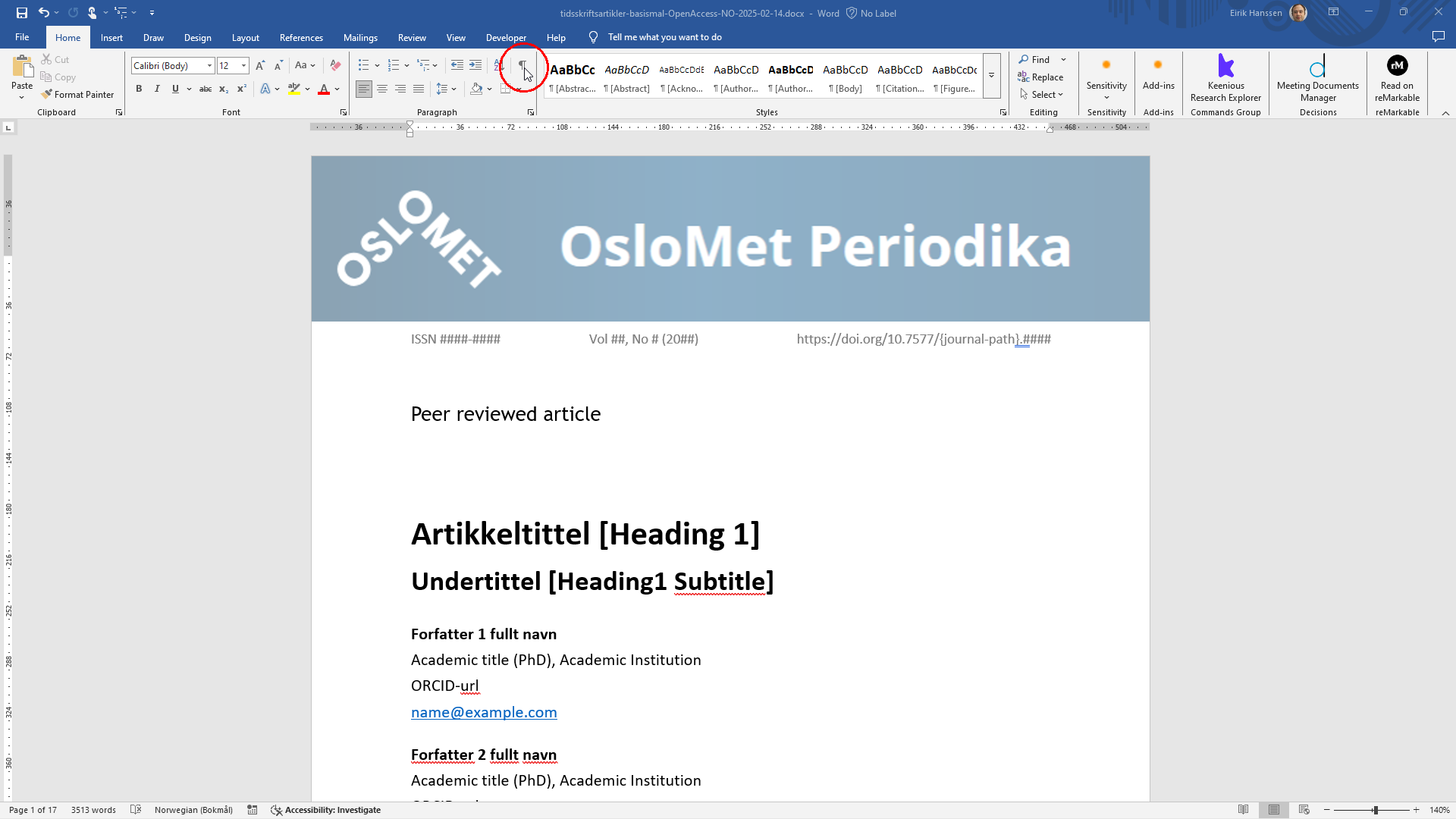
- Turn on non-printing characters for better control of whitespace and spacing
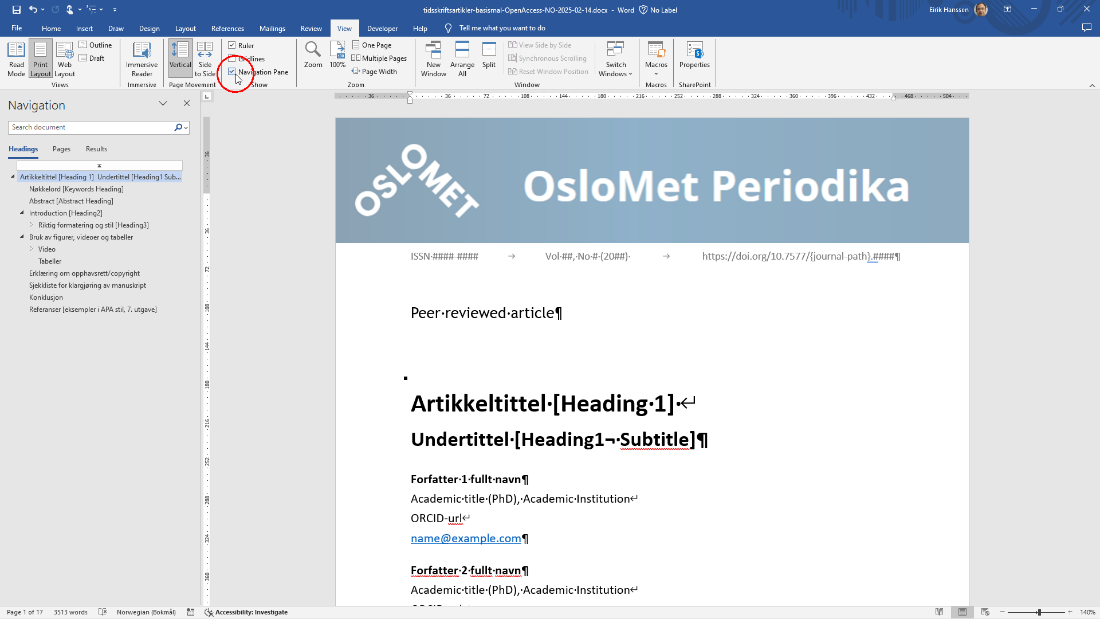
Show the Navigation Pane
The Navigation Pane is a useful tool for viewing all headings and the heading structure in your document. You can also navigate the document by clicking headings in the Navigation Pane.
- Go to the View tab
- Check Navigation Pane
Show the Styles pane
Use the Styles pane to choose the correct paragraph and heading styles for different types of content in the document.
To style a paragraph, place the cursor in the paragraph you want to style, then click the desired style in the Styles pane. It’s not necessary to select all the text in the paragraph.
Shortcut: (CTRL + ALT + SHIFT + S)
Activate it with the shortcut, or click the arrow from Styles on the Home tab.
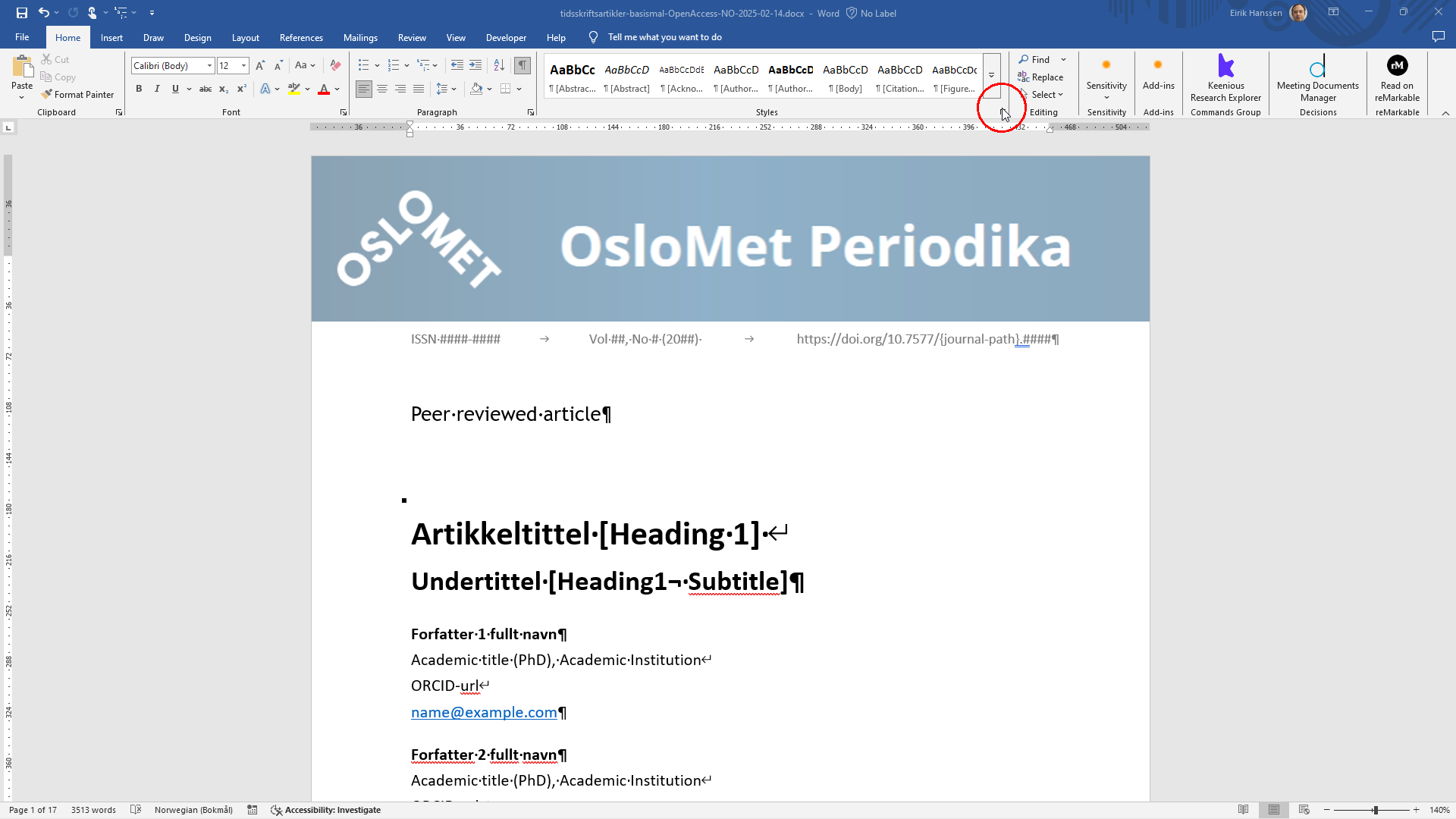
The Styles pane can be docked on the left or right side when activated. Here it’s on the left:
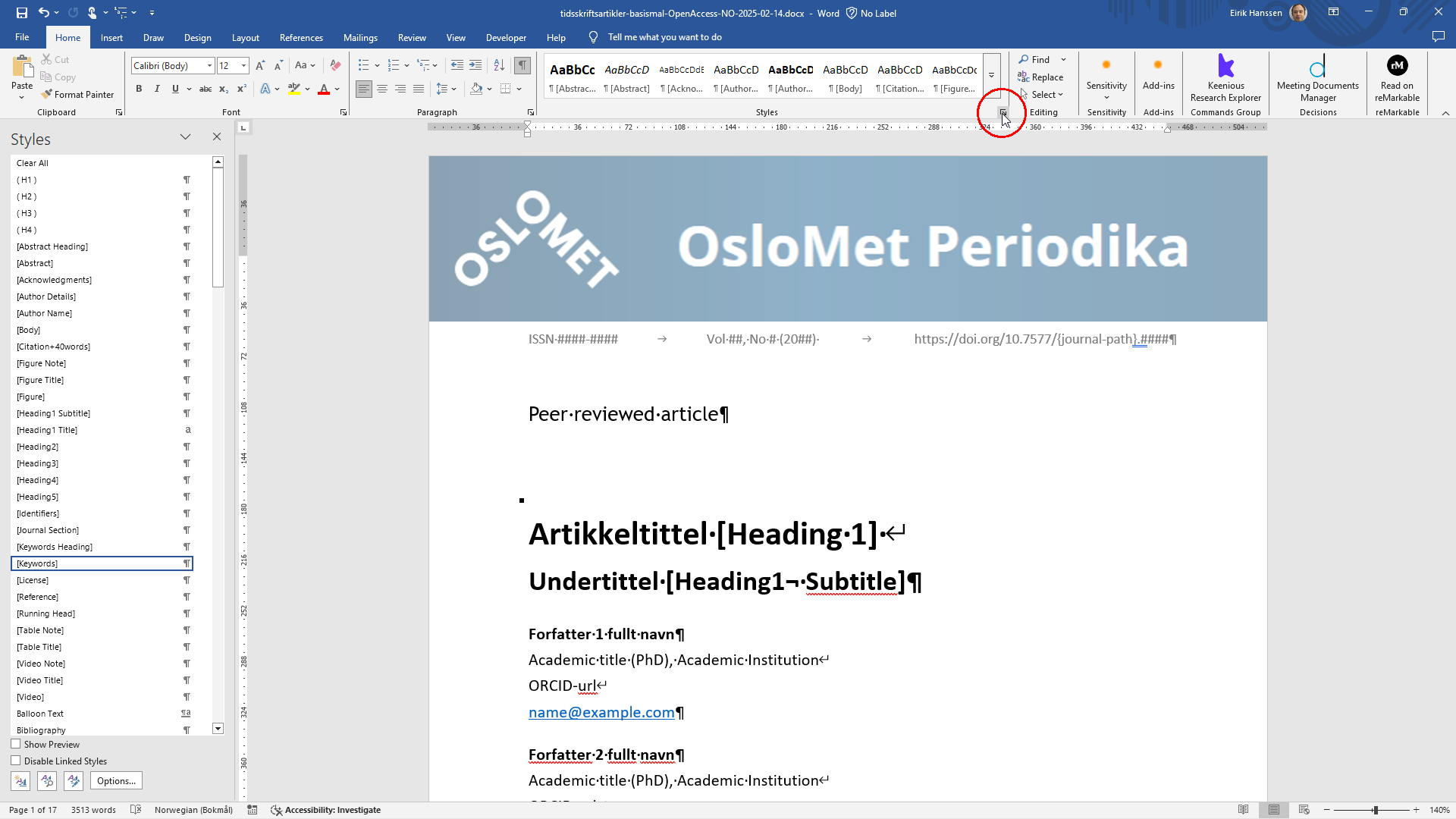
Show all styles, sorted alphabetically
This makes it quick to find the right paragraph style when styling your document.
- Click Options… in the Styles pane dialog
- Show All styles
- Sort the list alphabetically
- Click OK
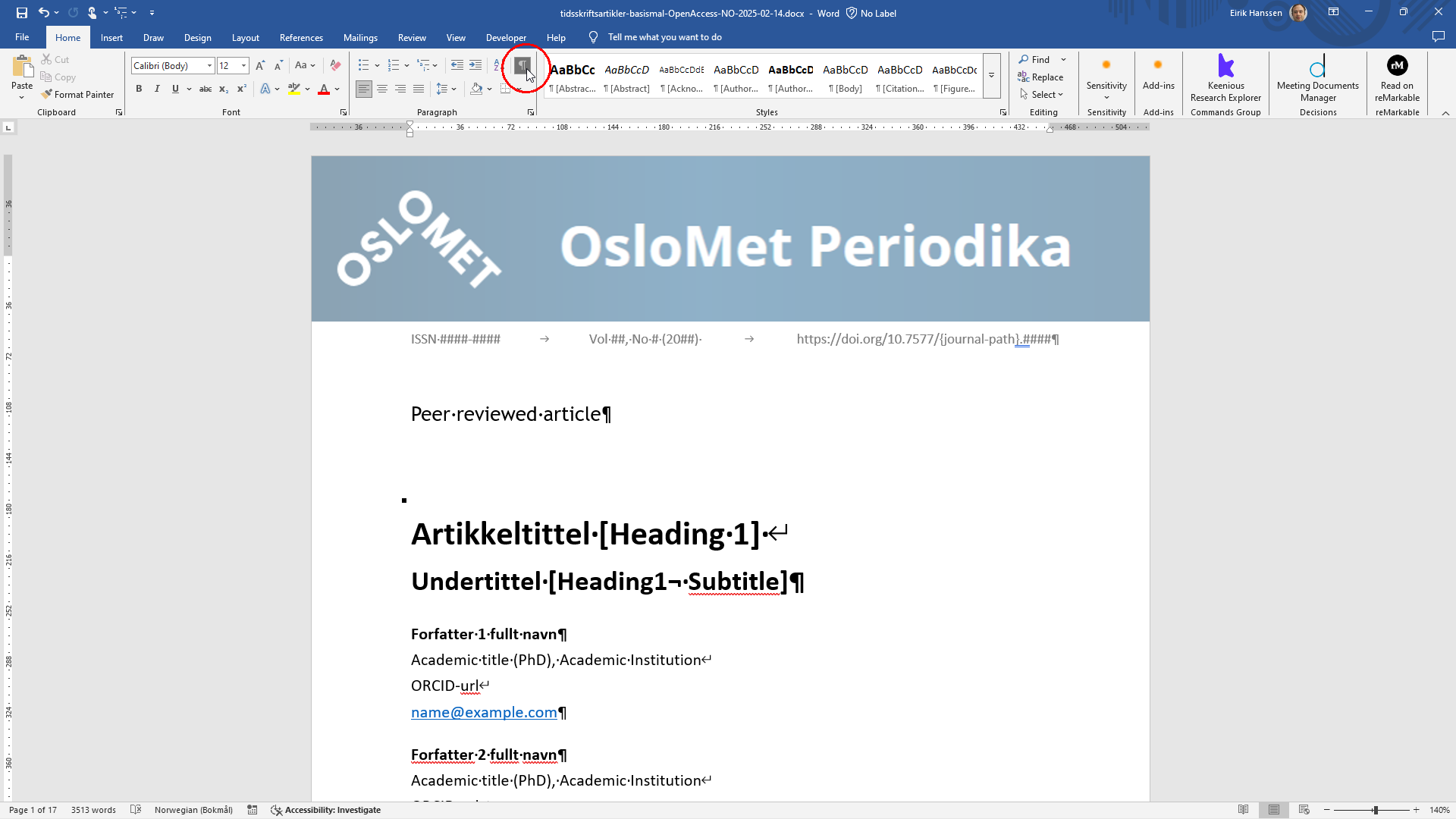
Enable non-printing characters
Showing non-printing characters lets you see what whitespace characters are used, such as spaces, line breaks, paragraph breaks, and manual page breaks.
On the Home tab, click the symbol to show non-printing characters:
When non-printing characters are enabled, you will see them represented with visible symbols: