PDF-export
Navigation to the different guides
It is not enough that the PDF file looks fine for printing. If the PDF document is created incorrectly, it will only be suitable for printing, and structural information will be lost.
The Word document must be exported to PDF from Word correctly so that: - The PDF document is suitable for electronic distribution - The document structure for accessibility is preserved - The PDF is accessible - The PDF document is compatible with assistive technology - The PDF document includes bookmarks for all headings - The PDF document complies with universal design requirements
Step-by-step guide (Word for Windows), desktop version
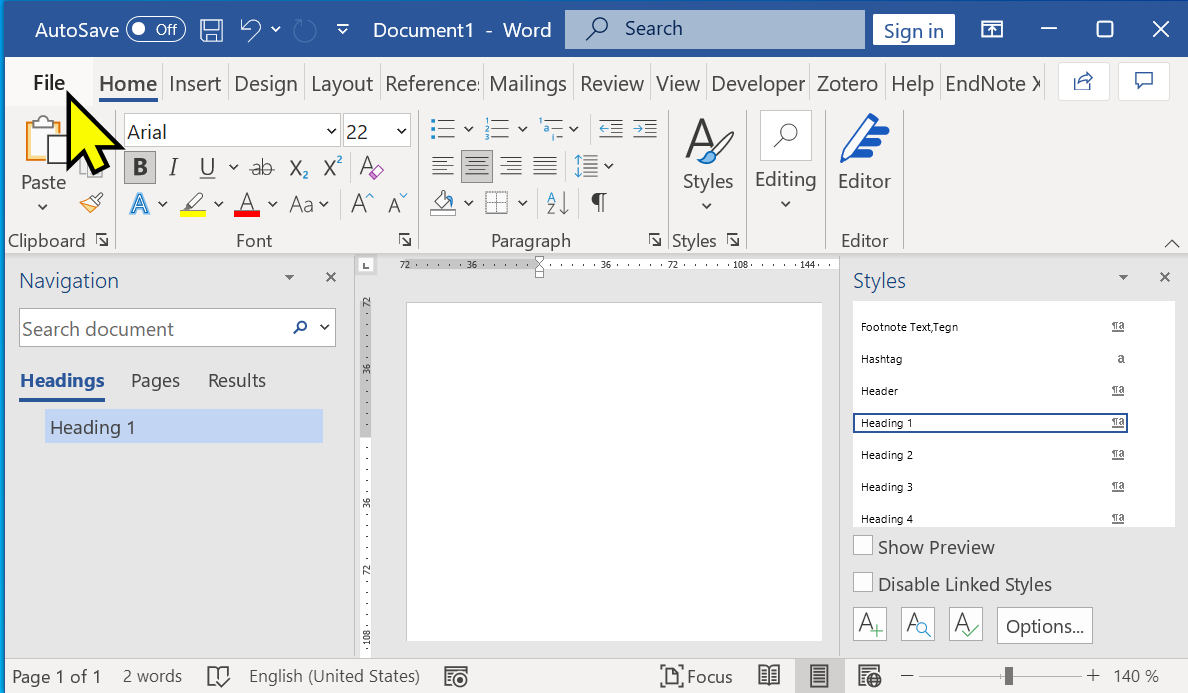
- Go to the File menu
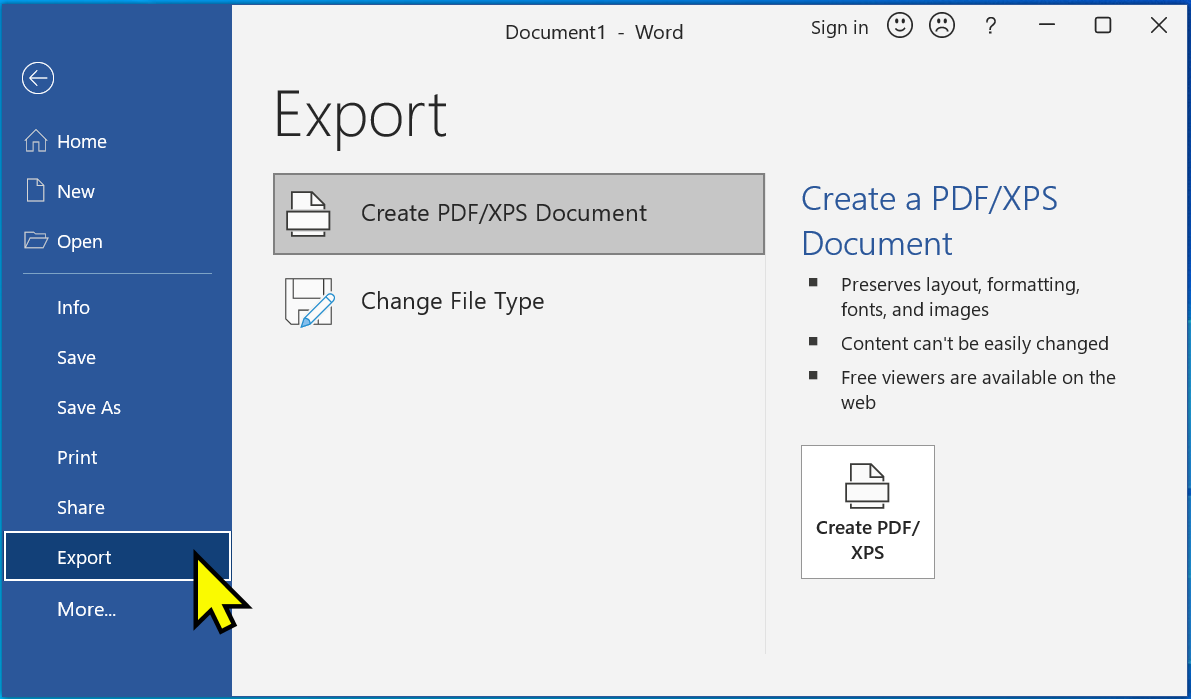
- Export
- Create PDF/XPS Document
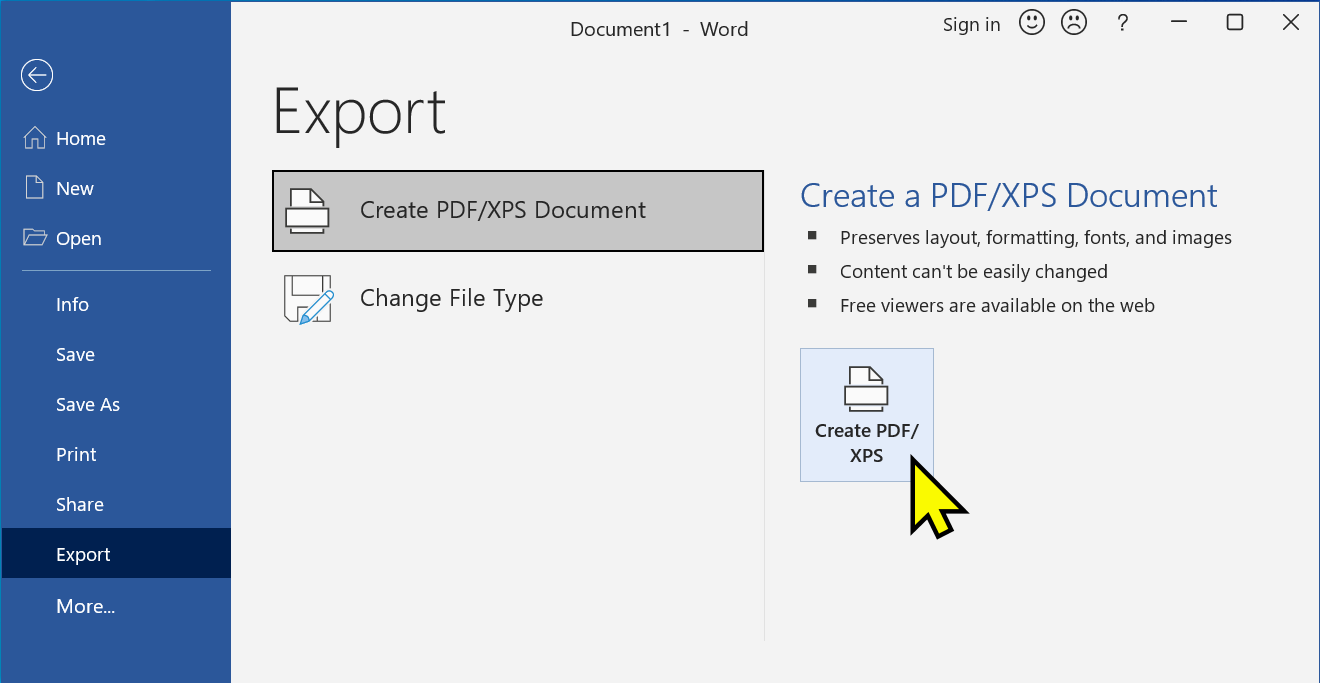
- Press the Create PDF/XPS Document button
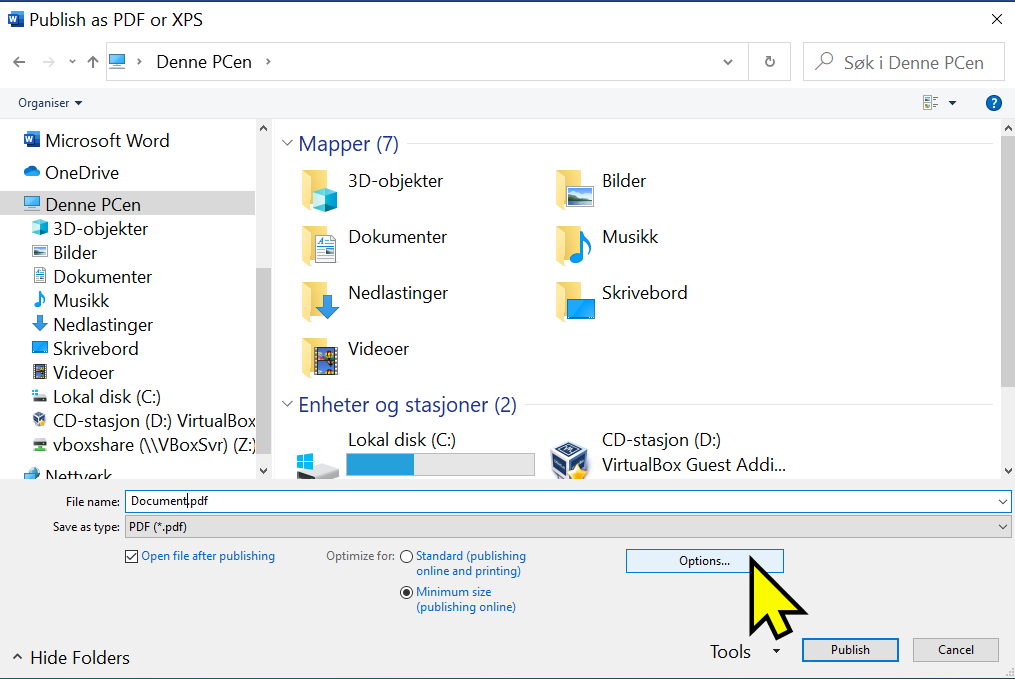
- Press the Options button to customize the PDF export
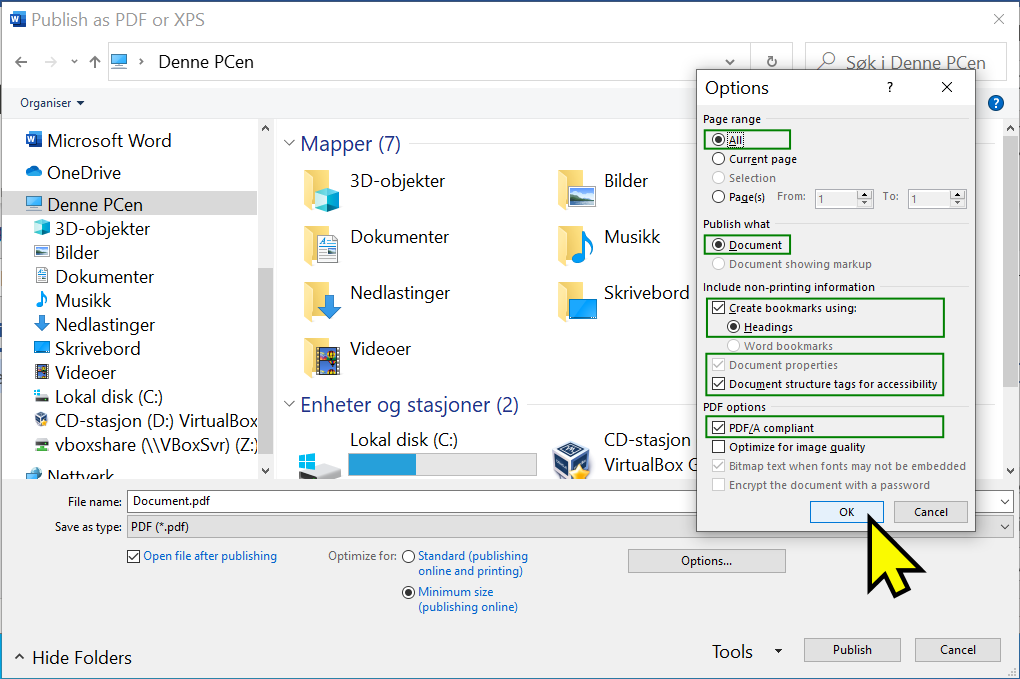
- Publish what:
- Document
- Include non-printing information:
- Create bookmarks using:
- Headings
- Document properties
- Tags for document structure for accessibility
- Create bookmarks using:
- PDF options:
- ISO 19005-1-compliant (PDF/A). This is also recommended because it ensures compatibility.
- Publish what:
Guide with screenshots
- Go to the File menu!
- Export
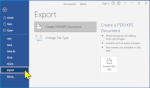
- Create PDF/XPS Document
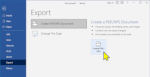
- Press the button for PDF export options
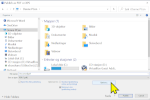
- Enable accessibility settings in the export
Check the option: Create bookmarks based on headings, Document structure for accessibility, PDF/A Compatible, and press OK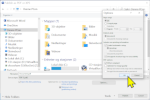
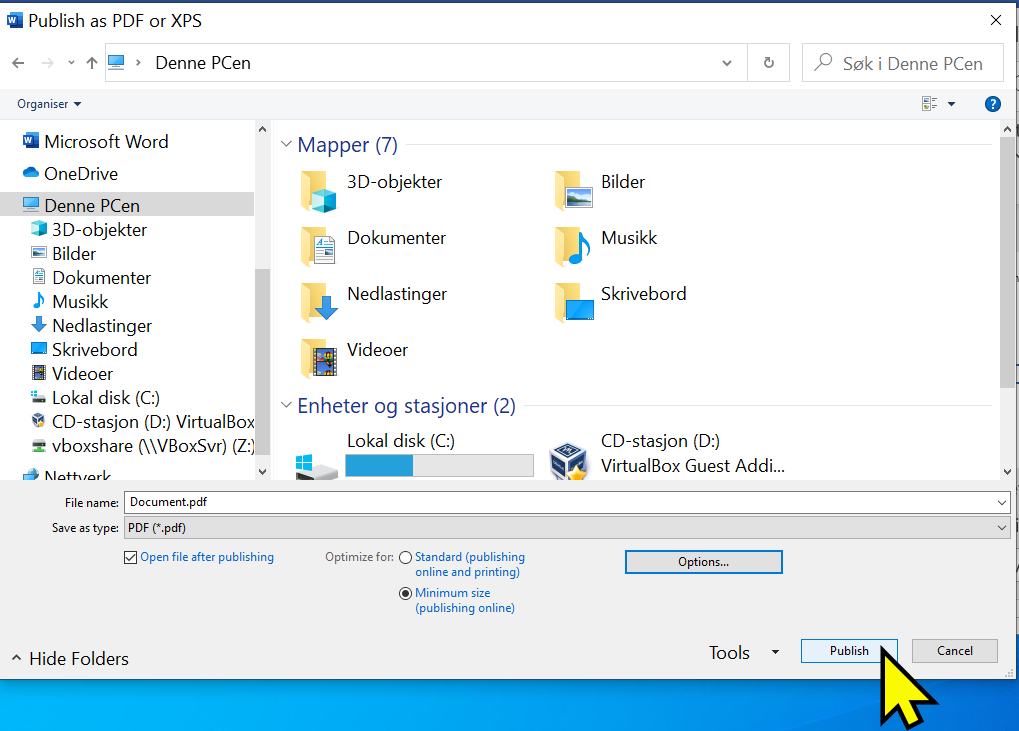
- Press the Publish button to save the file.