Accessible publication preparation in Word
Navigation to the different guides
- Guides
- Accessible publication preparation in Word
- Using video in articles
This guide discusses steps needed to be taken to prepare the manuscript for publication as well as tips about making this process more efficient. This includes: - applying a Word template with the journal’s formatting - ensuring that the document file will be accessible to most users - setting up your Word environment for an efficient structural workflow - working semantically with paragraph styles - working hierarcically with heading levels - using the built in accessibility checker in Word
This guide is based on the desktop version of Word in Office 365 for Windows. For other versions of Word, such as the browser version of Word and Word for Mac OS, some of the procedures will be slightly different.
As there are many versions of Word available for different operating systems, or even in the browser, with different functionalities and varying Graphical User Interfaces (GUI), some of the advice here will need different steps to achieve the desired result. Also there are changes between different versions of the software. And all of these differences cannot be covered in one guide.
Online support for Word
When steps suggested here don’t match your version of Word, try:
- An online search engine, which will often provide the answer
- Search for your specific problem in Word help & learning
Terms and explanations
Some terms and what is meant by those in this guide:
- Accessibility check
- Built-in checking tool in Word to find content that will create problems for some users.
- Direct formatting
- Selecting content and directly choosing how it should look by adjusting font, size, color, weight, etc. As a rule, we only do this to emphasize individual words and expressions using italics. We also use direct formatting with italics in the reference list in accordance with the chosen citation style.
- Forced page break (CTRL + Enter)
- In exceptional cases, you may want content to start at the top of the next page. You can then insert a forced page break in front. This is one of the last things you do in the document after you are done editing the rest.
- Heading style
- A type of paragraph style that has a heading level. We use heading levels to structure content. They are important so that, for example, visually impaired users can navigate the document even if they cannot see. When you have enabled the Navigation Pane, you will see the heading hierarchy with all headings. When the document is exported to PDF, the heading hierarchy can be embedded in the document structure and bookmarks can be created. This makes it possible to navigate by headings as a kind of clickable table of contents in a document reader.
- Hidden characters
- There are many hidden/blank characters, also called “whitespace.” The most common are spaces, tabs, paragraph breaks, and line breaks. Turn on the display of hidden characters to see them.
- Line break (SHIFT + ENTER)
- You can force the following content to start on a new line without starting a new paragraph by inserting a forced line break with [SHIFT]+[ENTER]. When showing hidden characters, a line break appears as an Enter symbol, i.e., a right-angle arrow pointing down-left.
- Navigation Pane
- Part of the Word interface where you can see all the headings and how they relate to each other (View > Navigation)
- Page break
- A type of break in Word where you force subsequent content to start at the top of a new page. Insert by pressing [CTRL]+[ENTER].
- Paragraph/Paragraph break
- A paragraph is a coherent block of text that addresses a main point. Often several sentences, but that is not a rule. For web texts, a paragraph is often 1–4 sentences; in a scholarly article it can often be more. A new paragraph is shown either by indentation or a blank line. When you press [Enter] in Word, a paragraph ends and a new one is inserted. When showing hidden characters, the end of a paragraph appears as the pilcrow character: ¶. Normally, you should not create extra space by inserting empty paragraph breaks.
- Paragraph style
- A style that defines text settings that apply to a paragraph. For example, it defines font, size, spacing, and more.
- Style the content
- Place the cursor in the paragraph and choose the correct paragraph style from the list of all styles.
- Styles gallery (ALT + CTRL + SHIFT + S)
- Part of the Word interface where you can choose styles, decide which styles to show, and how they are sorted. You can also define new styles here (but we have already done this work in the template).
- UD – Short for Universal Design
- If you see “UD” in the text, it means you must remember this to ensure Universal Design—that is, it is an important practice to accommodate all users regardless of functional ability.
- Working styles
- We call the styles defined for use in the article template “working styles.” In the latest versions of the template, all working styles are enclosed in [square brackets] or (parentheses). The style view in the Styles gallery can be arranged so that these appear at the top by showing all styles and sorting the list alphabetically.
Setting up articles in the document template
Before getting started with the document template, you might want spend a little time setting up an optimal workflow in Word.
Use styles—don’t manually format the document!
The template is designed for extensive use of paragraph styles. Direct formatting should generally be avoided, but italics are used to emphasize certain words and expressions. In addition, italics are used for some parts of a reference in the reference list.
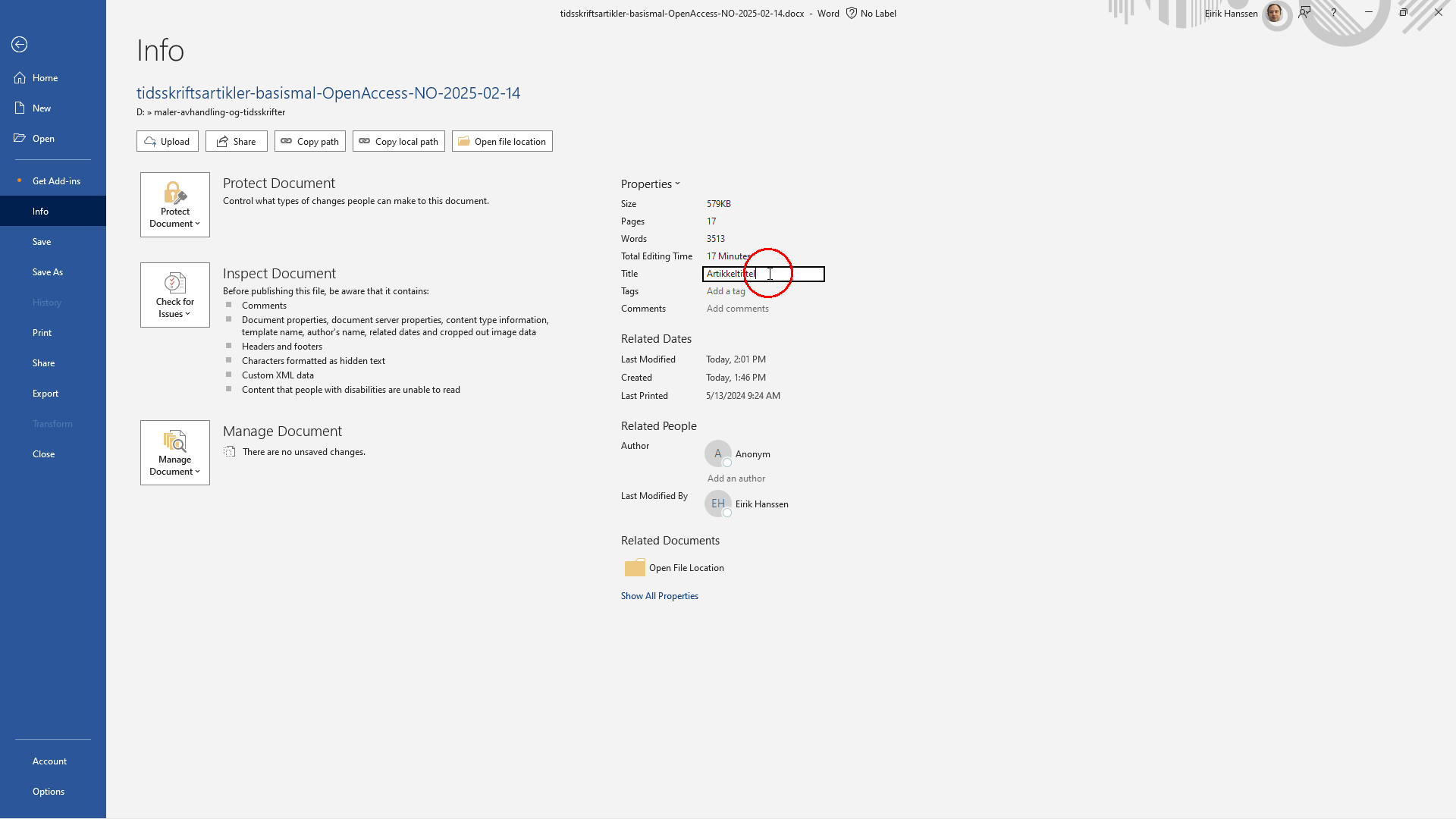
Use the article title as the Title in the document properties
The Title field in Document Properties is shown in the title bar at the top when you open a file.
For screen reader users, the title is announced when switching between windows. It is therefore very useful to enter the article title in the document properties. Remember this!
Steps:
- Select and copy the article title with CTRL+C
- Go to File > Info > Properties > Title
- Paste the article title
Correct heading levels
Structure the document with headings hierarchically.
Heading styles do more than just look like headings: they have built-in heading levels that are important for navigation, and that you can use to create bookmarks and a navigable table of contents when exporting/converting the Word file to, for example, PDF, HTML, or EPUB.
Proper use of heading styles allows a visually impaired person to navigate the document efficiently.
Never skip a heading level. Keep an eye on the Navigation Pane to ensure the heading hierarchy is correct and that there are no blank lines there. That indicates a blank paragraph has been given a heading style.
|
Text element |
Style |
Heading level |
Comment |
|---|---|---|---|
|
Article title |
[Heading 1 Title] |
1 |
Used only for the article title. |
|
Subtitle |
[Heading 1 Subtitle] |
||
|
Abstract (the heading) |
[Abstract Heading] |
2 |
Used only for the heading “Abstract”. |
|
Keywords (the heading) |
[Keywords Heading] |
2 |
Used only for the heading “Keywords”. |
|
Main heading level 2 |
[Heading2] |
2 |
Used for main sections such as: Introduction, Method, Results and analysis, Discussion, and References. |
|
Subheading level 3 |
[Heading3] |
3 |
Lower-level headings should only be used when placed under a heading one level higher. |
|
Subheading level 4 |
[Heading4] |
4 |
Lower-level headings should only be used when placed under a heading one level higher. |
|
Subheading level 5 |
[Heading5] |
5 |
Lower-level headings should only be used when placed under a heading one level higher. |
Note: Try to limit the text to only 3–4 heading levels. Up to five levels are defined in case it is necessary.
Quotations
We distinguish between short and long quotations. Follow the citation rules for your chosen citation style (e.g., APA7, Vancouver, or IEEE).
For APA7, which this template is designed for:
Short quotations (under 40 words) are rendered inline.
Longer quotations (at least 40 words) need a block quotation style.
Use the [Blockquote] or [Citation+40words] style for longer quotations of at least 40 words.
Lists
Create real lists using Word’s list tool.
This is necessary for assistive technology to understand that the content is a list. Lists can have multiple levels/indents, but do not skip a level.
See Create a list (Microsoft Support)
Avoid fake lists
A fake list is something that may look like a list, but isn’t a real list. Such constructions will not work with how assistive technology presents lists.
Examples of things you should not do because assistive tools won’t understand them: - Do not insert an image of a list. - Do not insert characters such as a bullet or hyphen to make text look like a list.
Figures
The figure setup is based on APA7 Figure Setup:
|
Part of the figure setup |
Style |
Procedure |
|---|---|---|
|
Figure number, |
[Figure Title] |
Use the [Figure Title] style for the figure title above the figure. The figure number is inserted automatically. Place the cursor after the figure number and insert a forced line break with SHIFT+ENTER so the figure number appears on its own line above the figure title. |
|
The figure itself |
[Figure] |
This style is automatically applied to the next paragraph when you are in a paragraph with the [Figure Title] style, or you can choose it from the Styles gallery. |
|
Figure note |
[Figure Note] |
Use the [Figure Note] style if there is a figure note below the figure. The note must begin with “Note:” in italics. The rest of the note should not be in italics. If you press ENTER after a paragraph with the [Figure] style, the next paragraph will automatically use the [Figure Note] style. |
Note: If you have a document using an older version of the template, there is a separate style for figure numbers called [Figure Number] that should be used on the line before [Figure Title].
Tables
The table setup is based on APA7 Table Setup:
- Table number
- Table title in italics
- The table itself
- Optional table note
Accessible tables (universal design)
We want to give all our readers the same opportunity to access the information contained in tables as well. There are many considerations to take into account, especially for tables. Follow this checklist to ensure the tables are accessible and meet universal design requirements.
- Tables are for data, not for layout.
- Build the table with the table tool:
- do not insert an image of a table (unless there are special reasons),
- do not format text to make it merely look like a table.
- Mark the first row (or header rows if there are multiple) and define it as a header row. This ensures the header row repeats at the top of subsequent pages if the table spans multiple pages, and assistive technology can announce to the user which header a cell’s data belongs to. If you change the Table Style afterwards, you must do this again because Word forgets it:
- Right-click the table header row and choose “Table Properties”.
- Go to the “Row” tab and specify that it is a header row that should repeat on subsequent pages.
Paragraph styles for table setup
Note that in older versions of the template, [Table Title] does not automatically insert a table number. In older versions, use [Table Number] for the first paragraph and [Table Title] for the second paragraph. In the newest version of the template, use table paragraph styles as follows:
|
Part of the table setup |
Style |
Procedure |
|---|---|---|
|
Table number, |
[Table Title] |
|
|
The table itself |
[Body] |
Use the body text style on the table itself to avoid conflicts with table design styles. |
|
Table note |
[Table Note] |
Use the [Table Note] style if there is a table note after the table. The note must begin with “Note:” in italics. The rest of the note should not be in italics. |
Note: If you have a document using an older version of the template, there is a separate style for table numbers called [Table Number] that should be used on the line before [Table Title].
Table design styles
The template defines a few table design styles you can use to get a basic table setup that you can fine-tune. Table design styles are not the same as paragraph styles. Tables should use the same paragraph style as the body text, i.e., [Body] in the newest version of the template.
When you place the cursor inside a table, newer versions of Word show a “Table Design” tab. There you can choose predefined formatting for the table.
|
Table type |
Table style |
|---|---|
|
Numeric data (centered) – APA7 |
APA7 Data Table |
|
Textual data (left-aligned) – APA7 |
APA7 Text Table |
|
Journal-specific table style |
What does the journal recommend? For example, “Formademisk Table”. |
Video
You cannot rely on being able to play video in a PDF, but you can insert a link on an image that will play in a browser when the link is followed. The video file itself is published on FilMet (film.oslomet.no), but a publishing agreement must be signed first. There are also several accessibility considerations.
Setup for videos in the Word document
The video setup in the Word document is based on the figure setup, except the word “Figure” is replaced with “Video”:
- Video title in italics (the video number is inserted automatically before the video title)
- Image from the video with an embedded link to the online player
- Optional video note
|
Part of the video setup |
Style |
Procedure |
|---|---|---|
|
Video number, |
[Video Title] |
Use the [Video Title] style for the video title above the video. The video number is inserted automatically. Place the cursor after the video number and insert a forced line break with SHIFT+ENTER so the video number appears on its own line above the video title. |
|
Video still image |
|
|
|
Video note |
[Video Note] |
Use the [Video Note] style if there is a video note after the Video. The note must begin with “Note:” in italics. The rest of the note should not be in italics. If you press ENTER after a paragraph with the Video style, the next paragraph will automatically use the [Video Note] style. |
Add a link to the player on the video still image
- Right-click the image and choose “Link”.
- Enter the player URL in the address field.
- Click the “Screen Tip” button.
- Provide a short description that explains where the link goes. For example: “Watch the video on salt dough speeding up.”
See the figure below for how to add a Screen Tip:
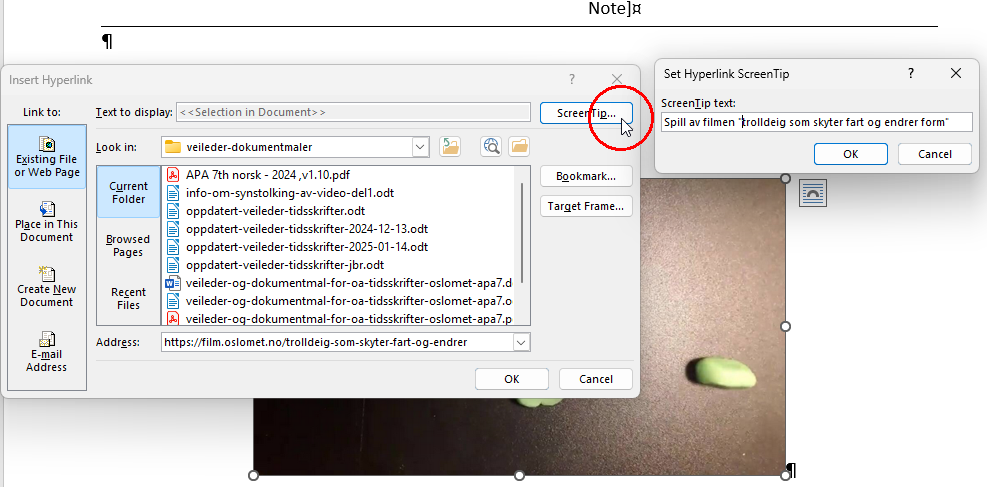
Note: Enter the link to the player in the address field at the bottom. Here the text “Play the film ‘salt dough speeding up and changing shape’” is entered. A person using a screen reader will hopefully hear that message when the screen reader reaches the link on the image.
In-text citations
Follow APA7 citation rules unless otherwise agreed.
Links in running text that should not appear in the reference list
According to the Norwegian APA7 standard, you should provide the website name and include the link in parentheses when including a link that should not appear in the reference list.
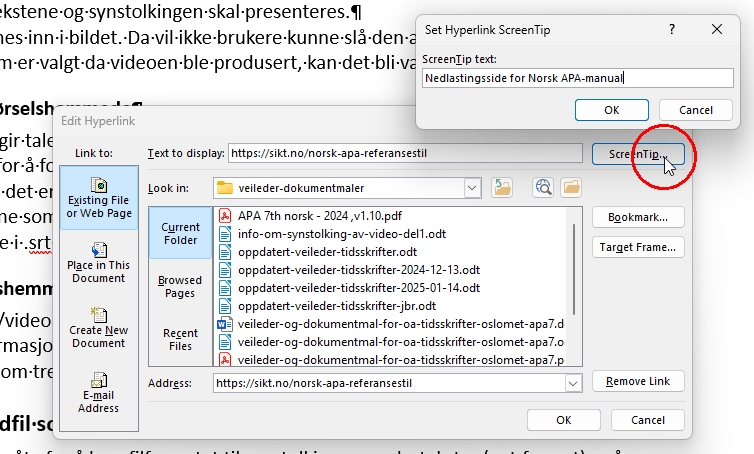
To follow this rule and maintain accessibility, you must also add a ScreenTip to the link that explains where it goes.
This is because screen reader users can bring up a list of links in a document out of context and need more information to know where each link leads. See the section on “References to websites, periodicals, software, and apps” on page 21 in Norwegian APA reference style, which describes how links in running text that are not in the reference list should be formatted.
Right-click the link, choose edit, and click the Screen Tip button. Enter an appropriate text, such as “Download page for the Norwegian APA manual”.
The reference list
- Use the [Reference] style
- One reference per paragraph. Be careful not to split a reference with a paragraph break.
- Find any missing DOI links for references using Crossref Simple Text Query and add them to the reference list
Links in the reference list
In the reference list, links are given as clickable URLs. For online sources, if a reference is registered in the DOI system, you should always provide a DOI link at the end of the reference. Only when the reference is not registered in the DOI system should you use a direct URL to the online resource.
DOI — Digital Object Identifier
A DOI link is a permanent link that redirects to the URL where the content resides. If the content is moved to a new URL in the future, the publisher (OsloMet University Library) ensures that the DOI link is updated to point to the new location.
Find missing DOI links for the reference list
Use Crossref Simple Text Query to find missing DOI links for references in the reference list:
- Select and copy the entire reference list in Word. Each reference must be in a single paragraph.
- Go to Crossref Simple Text Query.
- Paste the reference list and click the Submit button.
- After a short while, the reference list returns with clickable DOI links in blue. Any links that were already in the list appear in black.
- Now is also a good time to quality-check that all links in the reference list actually work as intended. Check the returned links by opening them in a new browser tab and verify that they lead to the correct resource. This is usually correct, but from time to time DOI links returned by Simple Text Query contain errors.
- Tips for opening a link in a new tab (depending on system): middle-click the link (PC), right-click the link (PC), or double-click the link (Mac), and choose to open in a new tab from the menu.
- Check all references that now have a blue DOI link underneath.
- If you see the same link already present in black above, you already have a DOI link for that reference.
- If you do not see a DOI URL in black, then the DOI link is missing from the reference and must be copied to Word.
- If you receive a DOI link back (starts with https://doi.org…), and your reference currently has a direct link to the resource (not a DOI link), replace the direct link with the DOI link in the Word reference list.
- For each DOI link you find that is missing in your Word document’s reference list:
- copy the link from the Crossref Simple Text Query result and place it at the very end of the reference, after the final period.
- In Word, after pasting the link, make it a clickable link:
- place the cursor right after the URL,
- press Space so Word converts the URL into a clickable link.
- P.S. Do not insert a period after the link in Word.